Maximum Exposure
Checking Signal
Now Playing: Checking signal TRANSMISSION ENDED

Broadcast Event

Broadcast Schedule

Checking signal

CONTINUOUS LOOP • ESTIMATED START Estimated time shown locally

  1. Loading broadcast schedule…

Independent Cult-Film Broadcasting

About Maximum Exposure

Maximum Exposure is a private film-club broadcast project focused on cult cinema, independent films, direct-to-video releases, forgotten television movies, preservation, and the strange corners of film history that are increasingly difficult to find.

Curated Marathons

Programming is assembled by hand around themes, performers, filmmakers, genres, and the occasional rabbit hole worth spending a day in.

Live Channel

One stream, one lineup, one shared clock. Drop in wherever the schedule happens to be and watch along with everyone else.

Preservation Mindset

Beyond the broadcasts, the project documents and tracks material at risk of slipping out of circulation, with preservation treated as part of the programming itself.

Special Presentations

Appointment-viewing features, trailers, guest commentary, and one-off presentations can step outside the regular loop when something deserves the spotlight.

Support Maximum Exposure

Contributions help cover server hosting, hardware upgrades, preservation work, and future broadcasts. No perks, subscriptions, or paywalls — just helping keep the projector running.

Ko-fi

Past Broadcasts

MX-04-1026

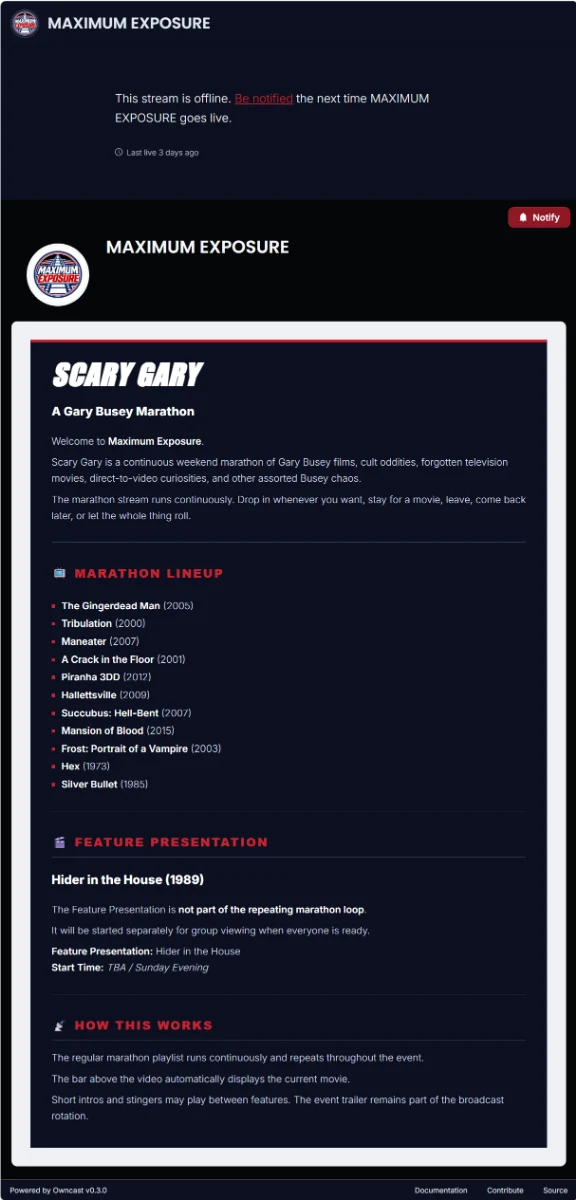
SCARY GARY

–

Program
13 selections total
  1. 2000Tribulation
  2. 2001A Crack in the Floor
  3. 2007Succubus: Hell-Bent
  4. 1998Rough Draft
  5. 2003Frost: Portrait of a Vampire
  6. 2007Maneater
  1. 2012Piranha 3DD
  2. 2015Mansion of Blood
  3. 2009Hallettsville
  4. 2005The Gingerdead Man
  5. 2026Trick and Treats
  6. 1985Silver Bullet
Feature Presentations
Feature 01Hider in the House

MX-03-0826

CURRY ON

–

Music: jesu – Don’t Dream It
Program
13 selections total
  1. 1975The Rocky Horror Picture Show
  2. 1985Blue Money
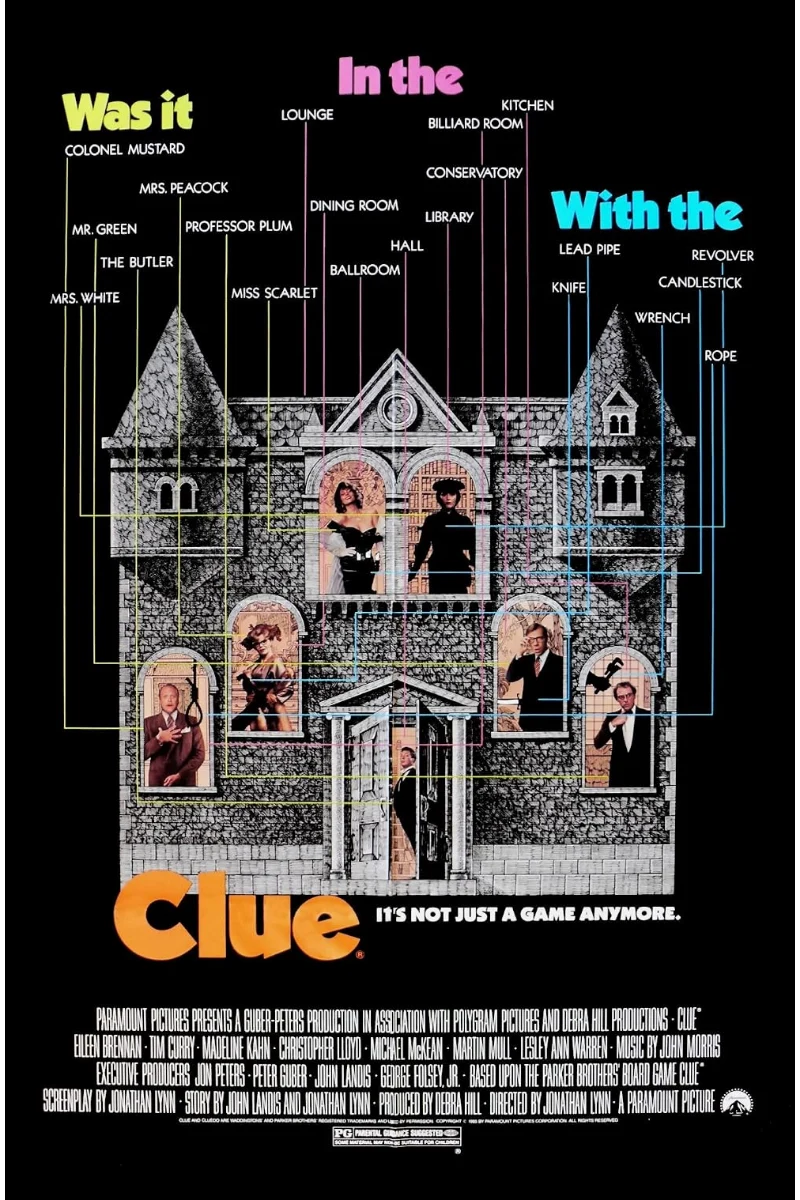
  3. 1985Clue
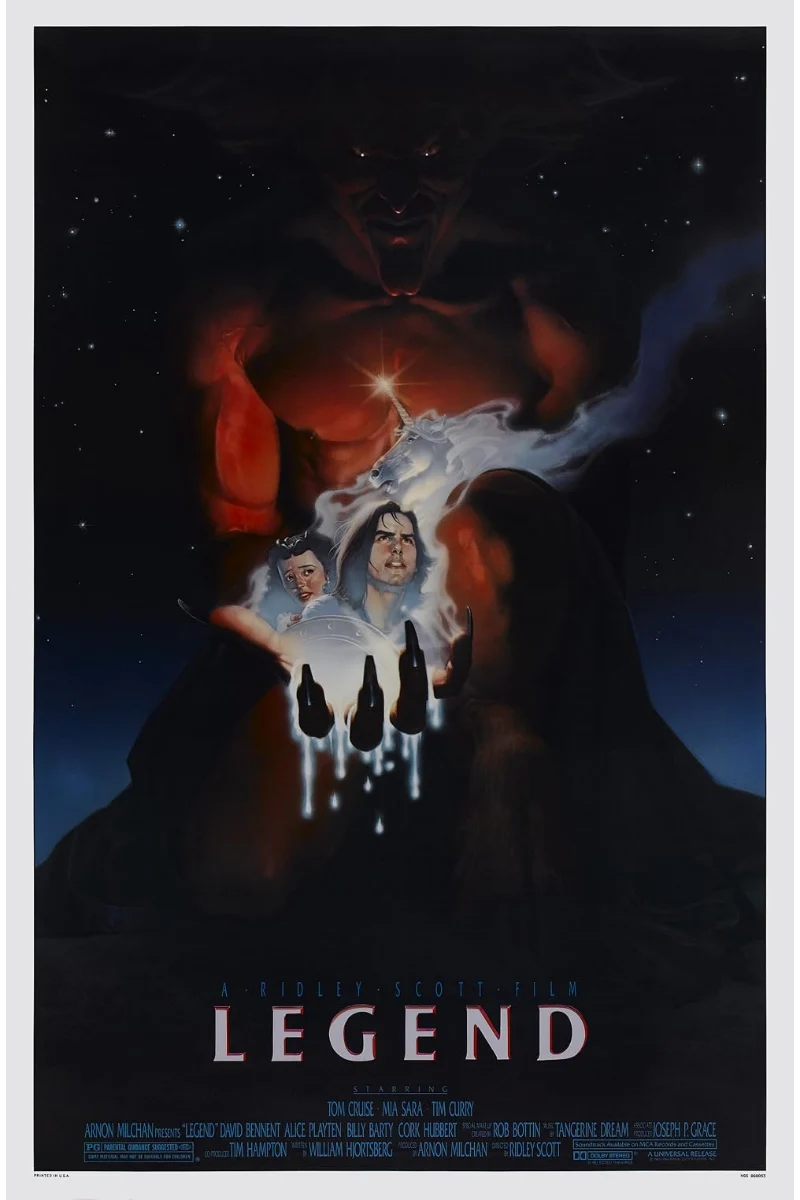
  4. 1985Legend
  5. 1986The Worst Witch
  6. 1987Pass the Ammo
  1. 1990The Hunt for Red October
  2. 1990IT
  3. 1991Oscar
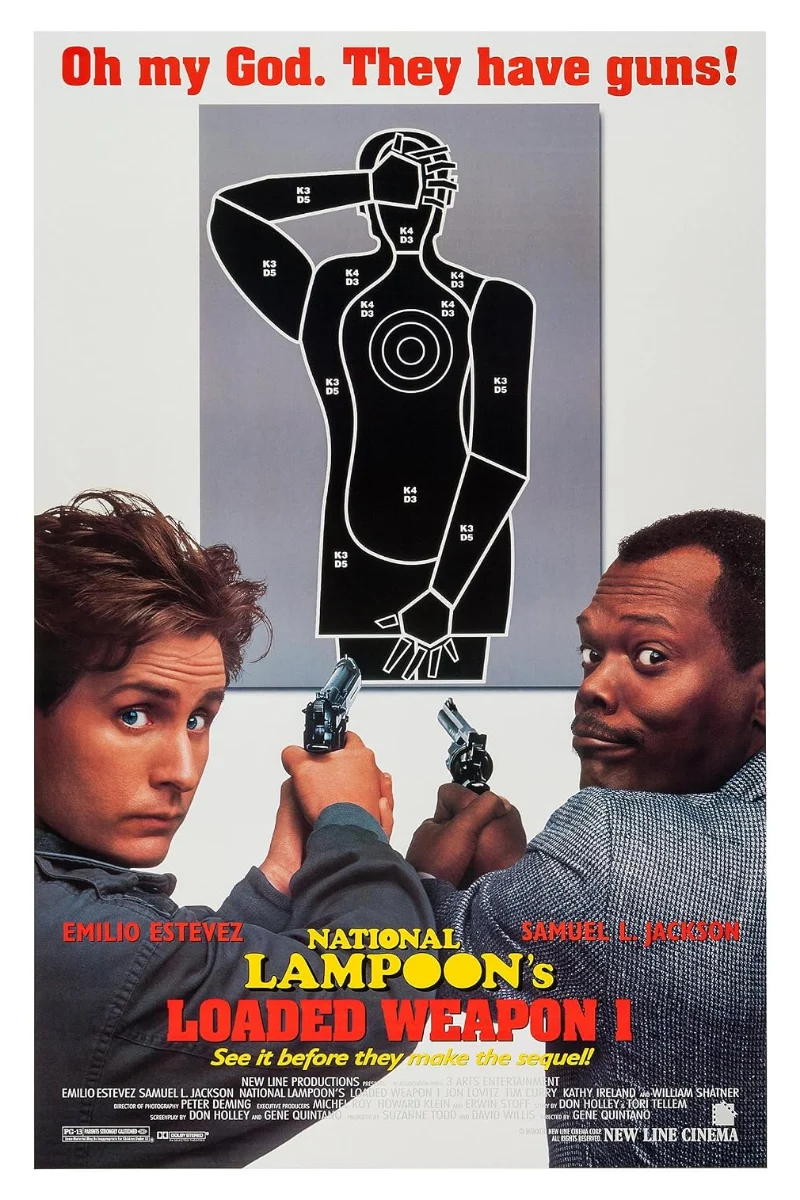
  4. 1993Loaded Weapon 1
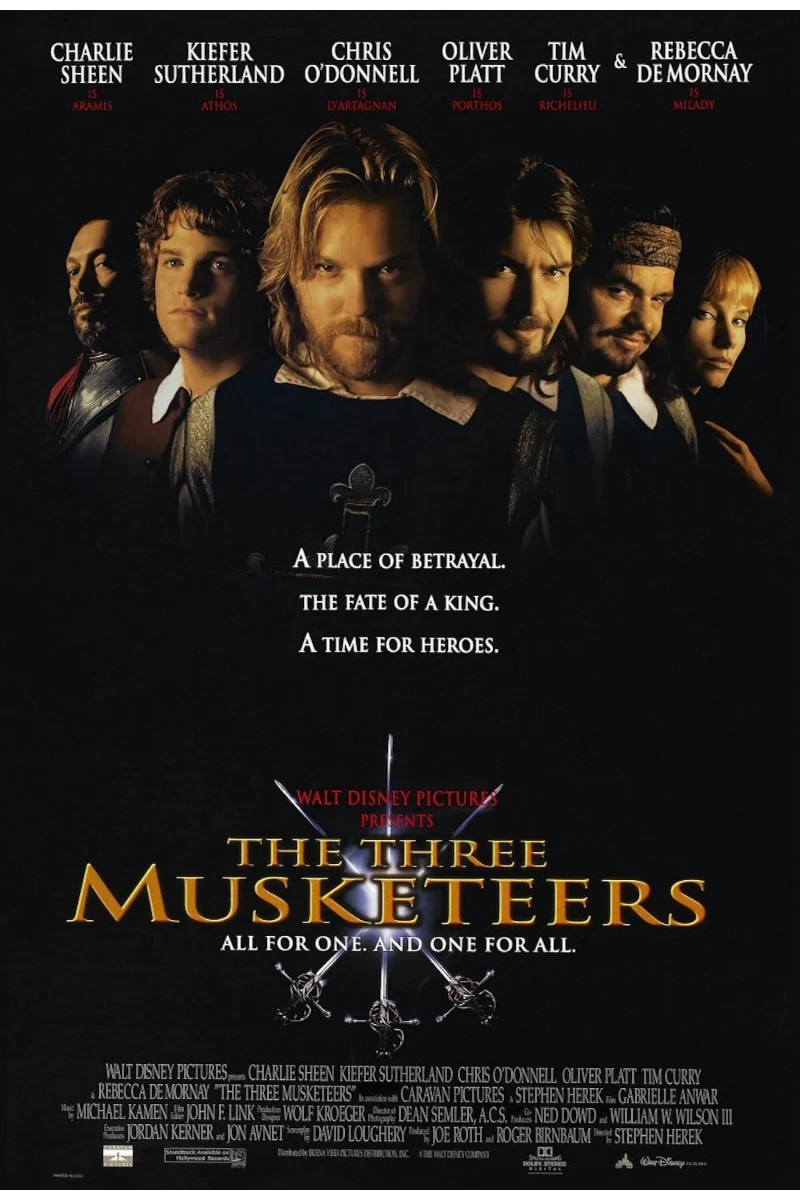
  5. 1993The Three Musketeers
  6. 1996Muppet Treasure Island
Feature Presentations
Feature 01Congo

MX-02-0626

Z’DARATHON 2026

–

Program
11 selections total
  1. 1986The Night Stalker
  2. 1996Dangerous Cargo
  3. 1996FrankenbladeShort
  4. 1996Shotgun Boulevard
  5. 1996Fugitive X: Innocent Target
  1. 1996Total Force
  2. 1996Stormy Nights
  3. 2006Spaced Out
  4. 2016Chasing Gold Frogtown II
Feature Presentations
Feature 01Lone Tiger
Feature 02Untitled Horror ComedyGuest commentary by director Michael Charron

MX-01-0625

Z’DARATHON 2025

Program
11 selections total
  1. 1989Tango & Cash
  2. 1988Maniac Cop
  3. 1990Maniac Cop 2
  4. 1992Maniac Cop 3
  5. 1988Killing America Style
  1. 1990Soultaker
  2. 1991Samurai Cop
  3. 2015Samurai Cop 2 – Deadly Vengeance
  4. 1997Pocket Ninjas
  5. 2007Yin Yang Insane
Feature Presentations
Feature 01Death from Above

Privacy Policy

Maximum Exposure is independently owned, operated, and self-funded. You can watch without an account or an email address. We do not sell, rent, or trade personal information or build advertising profiles. Information is used to run the broadcast and provide the optional features you choose. Optional alerts need subscription records, as explained below.

Last updated October 21, 2026.

Watching and using the site

Playback, captions, and casting

Connecting to the website or stream involves technical information such as your IP address, browser details, requested page or media, and access time. Delivery and security systems use this information to serve the broadcast, diagnose problems, and prevent abuse. Some technical information may appear in operational logs.

When live captions are provided, Deepgram processes the broadcast’s audio for speech recognition. They do not access your microphone. Caption text is held briefly to synchronize playback, rather than kept as a permanent transcript archive. Casting through Chromecast or AirPlay also involves the services and privacy settings of your browser, television, or receiver.

Saved settings and game progress

Viewing preferences, theme choices, game saves, collections, achievements, and unlocks can be saved in your browser. These local saves are not a visitor account or a cloud backup. They do not automatically transfer to another browser or device. The final section explains how to clear them.

Alerts and subscriptions

Alerts are optional and sent manually by the station operator. Watching a broadcast does not subscribe you. Email and browser alerts are separate choices.

Email alerts

The signup form forwards your email address through our server to Buttondown over an encrypted connection. Our signup service does not save the address or form contents. Buttondown holds the subscriber list and handles confirmation, email delivery, unsubscribe requests, and records that prevent further unwanted mail.

Confirm the subscription using the email sent to your inbox. To stop email alerts, use the unsubscribe link at the bottom of any email. Unsubscribing does not necessarily erase every record held by Buttondown. Depending on the newsletter’s settings, delivery information may include email opens or link clicks. Subscriber totals can be checked without keeping a separate copy of Buttondown’s address list.

Browser alerts

Browser alerts require your permission on each device. No email address is needed. Our server stores the device’s notification delivery address, encryption keys, and a verification record in a private subscription database. Your browser keeps its private management token. Notifications travel through your browser provider’s push service and can open the station when selected; the notification worker does not cache broadcast video.

Use Turn off browser alerts in the bell to remove this device’s subscription. You can also block notifications in browser settings, although blocking alone can leave a server record until it is removed or the push service reports it expired. Browser and operating-system settings affect delivery. Clearing saved preferences alone is not a reliable way to unsubscribe.

Feedback and contributions

Contacting Maximum Exposure

Feedback sends your message and any optional name or email address to the station’s email inbox. It is not saved in a website message database. We use it to review your report, reply where appropriate, and retain relevant correspondence. Do not include passwords, payment details, or unnecessary sensitive information.

Optional support

Contributions are voluntary. Ko-fi and the payment provider you choose process the transaction; this website does not receive your full card number or card security code. Those services may share your name, email address, contribution amount, message, and transaction details with the station so we can acknowledge support and handle payment questions or records.

Outside services and site security

Form verification and abuse prevention

Email signup and feedback use Cloudflare Turnstile. Opening a form can load its verification service and connect your browser to Cloudflare. Our services also use temporary identifiers derived from connection information to limit repeated submissions; they do not include your message. Feedback rate-limit entries cover a 15-minute window. Signup rate-limit identifiers are held in memory for up to an hour. Old entries are removed on later requests, or when the in-memory service restarts.

Provider privacy policies

The outside services used by these features have their own privacy practices. Their policies are grouped here for reference; following an outside link also sends connection information to that site.

Captions: Deepgram Privacy Policy.

Email alerts: Buttondown Privacy Policy.

Browser notifications and casting: Google Privacy Policy, Mozilla Privacy Notice, Apple Privacy Policy, and Microsoft Privacy Statement. Google also provides Google Cast privacy settings. Other receivers may have separate policies.

Form verification: Cloudflare Turnstile Privacy Addendum.

Contributions: Ko-fi Privacy Policy, together with the policy of your chosen payment provider.

Retained records and privacy requests

Local preferences and saves remain until you or your browser clear them. Browser subscriptions remain until removed or reported expired. Private announcement history and sending records are kept separately for troubleshooting and duplicate-send prevention. Feedback and contribution correspondence can remain in the station’s email records. Provider-held records follow the relevant provider’s retention practices; unsubscribing and deleting information are separate actions.

For privacy questions, correction or deletion requests, security concerns, or site bugs, use the . A browser reset cannot erase information already delivered to the station or a provider. We update this policy when features change how information is collected or used; the date above identifies this version.

Clear browser data

The confirmation page permanently removes this website’s saved preferences, game progress, collections, achievements, and unlocks from this browser. It clears local storage, this tab’s session storage, and browser databases, including older game saves. There is no undo or cloud backup. Close other Maximum Exposure tabs first so they cannot save old settings again.

Turn browser alerts off in the bell before clearing saved data. For email alerts, use the unsubscribe link at the bottom of any email. This reset does not reliably revoke notification permission or a push subscription, unsubscribe email, erase information already sent, or affect other websites or devices. Browser history, cookies, and downloaded caches must be cleared through browser settings.

Opening the page clears nothing. You must choose Clear saved data to confirm. If the browser prevents complete removal, the page reports that limitation.

Clear browser data

Submit Feedback

Your submission is emailed to Maximum Exposure.

Director’s Cut

Viewing features

Beta · 1.09

Playback controls

Use the player controls for play/pause, volume and fullscreen. More playback options appear when your browser supports them, including Picture-in-Picture for a floating video window. Theater mode adjusts the page layout; fullscreen uses the screen.

Playback quality

Auto lets browser playback adapt to available bandwidth. Low uses a lighter stream for slower connections. Available resolution depends on the broadcast, and older transfers may look similar at either setting. Television playback may choose its quality independently.

Theater mode

On desktop, choose Theater mode to the left of the bell in the Now Playing / Transmission Ended bar. It hides the sidebar, dims the background and fits the complete picture with its bars into the available browser window. The size updates when the window, zoom, announcement or bar height changes, while preserving the picture’s proportions.

Choose Exit theater or press Escape to restore the normal layout. Scrolling past the player restores navigation too. Theater mode keeps playback in the same player and does not enter fullscreen. Phone and tablet layouts stay the same. If the available space cannot fit the controls and picture, the normal layout is restored.

Live captions Beta

Use the subtitles icon to turn optional live captions on or off. The player aligns captions with your playback and can show when the caption feed is waiting or unavailable. These are automatic transcripts of the broadcast audio, generated in real time by our speech-recognition partner; they are not prepared or reviewed subtitles. Recognition accuracy depends on that service and the recording, so words may be missed or misheard, especially with overlapping dialogue, music, accents, or noisy recordings. Speaker separation may be inconsistent. Caption display, line breaks, and synchronization are handled by this site and may also have bugs while the feature is in beta.

Chromecast Beta

Use the Cast button to choose a compatible television or receiver. While connected, playback controls operate the television. Returning to the page can reconnect to an existing session without deliberately starting the movie again. Reconnection and caption appearance vary across devices; if playback stops responding, disconnect and reconnect, or watch in your browser.

If the Cast button is missing or no devices appear, check that your browser has permission to find devices and that your phone and television are on the same Wi-Fi network. On Android: Settings → Apps → your browser → Permissions → Nearby devices → Allow. Then reopen this page. Browser and system updates can change permission requirements. Missing devices can also have other causes; this check does not mean permission was definitely denied.

AirPlay Untested

An AirPlay option is available in the player menu on supported Apple devices for playback on a compatible television. Video playback and live captions have not yet been verified on AirPlay hardware.

Live schedule

Film times and upcoming replays update as the broadcast progresses, in your local time zone. Estimates include the running order and transitions between films. The next replay follows the playlist back to its beginning; separately scheduled presentations show their own appointments. Live timing can change, so listed times remain estimates.

Themes

Available presentations in Past Broadcasts include a Theme switch. Turn it on to apply that presentation’s colors, artwork, and decorations across the site, or off to return to the standard look. Themes do not change the schedule or playback controls.

The site can also select a seasonal theme automatically. Your switch choice is saved in this browser, with separate preferences for the seasonal period and archive visits. Earned decorations remain saved when a theme is turned off.

Director’s Cut

Use the Director’s Cut button among a marathon’s shared controls in Past Broadcasts to read the story behind the event, film choices and production notes. The button appears when a written article is available. Some articles include poster-and-note blocks with optional JustWatch links to help you find viewing options, or photographs with captions and credits. Pictures stay contained within the article. Use Close or press Escape to return to the archive.

Games and achievements

Some corners of Maximum Exposure reward a little exploration. Games, achievements, and other discoveries are part of the station. Take a look around; there may be more here than first meets the eye.

Help improve the station

Maximum Exposure is independently owned and operated, with no shareholders, advertisers, or corporate overseers shaping its programming. That creative freedom allows curiosity and personal taste to guide the station, with care given to the viewing experience from top to bottom.

The tradeoff is that improvements and replies happen as time allows, rather than through a dedicated staff. Thoughtful feedback helps direct that effort where it matters most.

Use Submit Feedback in the footer to report problems or suggest improvements. An itemized list helps each issue receive separate attention:

  • Describe what happened and what you expected.
  • Include your device, browser, and whether you were casting or using fullscreen.
  • Give the steps to reproduce the problem, if possible.

We cannot investigate every individual transcription error, but we are actively looking for reproducible bugs and recurring problems.

Include only information relevant to the issue. Do not submit passwords, payment details, or other sensitive information.

Broadcast alerts

A heads-up when something is happening at Maximum Exposure.

Enable notifications on this device.